> For the complete documentation index, see [llms.txt](https://docs.allout.game/llms.txt). Markdown versions of documentation pages are available by appending `.md` to page URLs; this page is available as [Markdown](https://docs.allout.game/getting-started/playtesting-your-game.md).
# Playtesting Your Game
We make it super simple to try your game locally, with friends, and on mobile!
### Testing your game
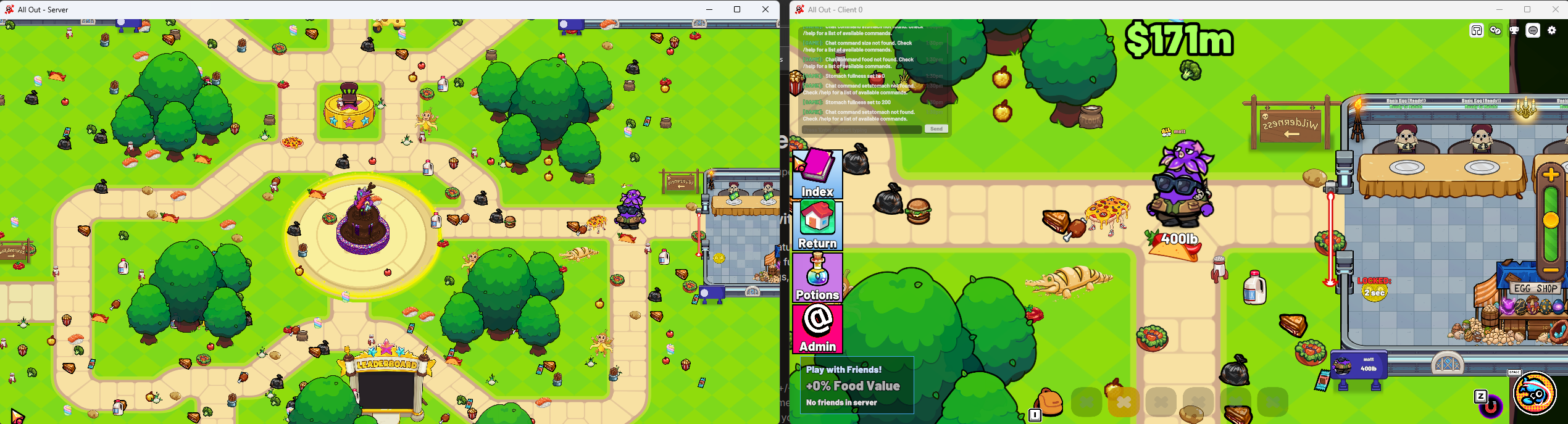
Once you're ready to play your game, hit the green play button at the top of the editor. This will launch the server and client on your local PC to play!
### Testing with multiple local clients
After each feature you build, it's important to launch multiple clients at the same time to make sure that the game functions even when multiple players interact with your game world. This is a common source of bugs, so we make it easy to do this testing.
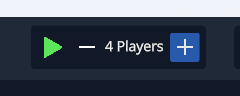
> Use the +/- buttons next to the play button to determine how many instances of the client to start at a time. You can also use the "Add Client" button while testing to add additional clients any time you need.
### Testing with friends
To test your game with friends, publish the game with the upload button in the top right of the editor and set the game's visibility in the creator portal to "Unlisted". Then send the link to the "View Public Page" to your friends!
### Testing on mobile
Since nearly 90% of All Out's player base is on mobile, it's super important to make sure your game plays well on phones!
We make it easy to test on mobile by automatically exposing your local editor server to devices on your local network.
To join, launch your game from the editor with the play button, then open your mobile device. **It must be connected to the same Wi-Fi/network as your PC**.
At the top of the All Out mobile app you'll see a yellow "Join Editor Game" prompt after refreshing.
### Making changes while playing/hot reloading
Saving a CSL file is detected and compiled automatically. While a test is running, press **Alt+F9** to manually hot-load the compiled scripts into the game. The game, including clients that join later, keeps its previous scripts until a hot-load succeeds; if it refuses one (for example, after changing the fields of a registered item type), restart the test. Stop and restart the test after changing the scene or other non-script project data. **Ctrl+R** reloads the whole editor project; it is not required for normal script compilation.
The editor prepares and publishes changed assets in the background. Start Game waits for that work to finish so it cannot launch with a stale asset package. If publishing fails, use **Try Again** beside the play controls after correcting the reported asset error.
For unusual cache or compiler problems, the **File** menu has two recovery actions:
* **Force Recompile Scripts** clears the C# assembly reuse cache and recompiles the project scripts.
* **Clear Project Caches** integrity-checks the current scene and compile caches, asks for confirmation, and rebuilds them from project sources.